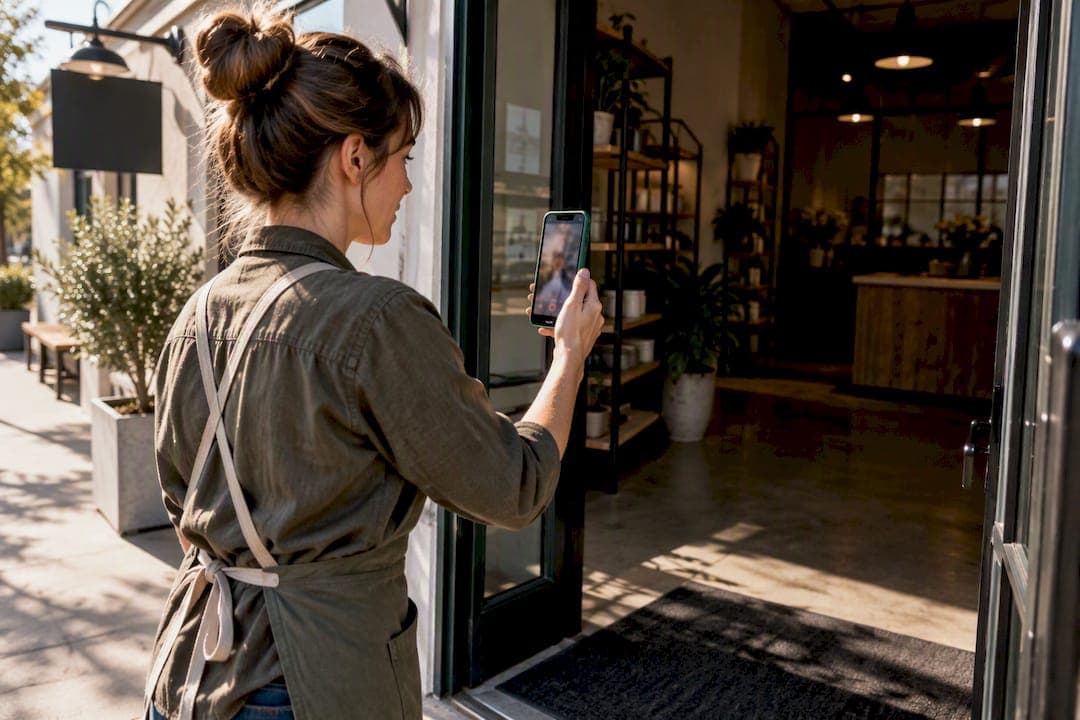
Yes, you must verify your Business Profile before you can manage it on Google. Google automatically assigns one or more verification methods, usually postcard, phone or SMS, email, video, or instant verification, based on your business type and location. Sign into the Google Account that manages your profile, find the listing, and tap Get verified to see which option Google has made available to you.
TL;DR:
- Verification methods depend on your business's category, region, and existing public information, with options including postcard, phone, email, video, or instant verification.
- You must ensure your profile details exactly match your real-world signage and documents, especially before requesting postcard or video verifications.
- Video verification requires a continuous, unedited video showing both exterior signage and proof of management, filmed from a mobile device and at least 30 seconds long.
- Verification review times generally take up to five business days, with immediate success possible for phone or instant methods, and longer for postcard or video.
- Common mistakes include editing profile details mid-process and attempting unsupported verification methods, which can cause repeated failures and delays.
Table of Contents
- What Verification Methods Does Google Business Profile Offer?
- How Do You Complete Google Business Profile Verification?
- How Do You Pass Video Verification on the First Try?
- How Long Does Google Business Profile Verification Take?
- What SMB Owners Consistently Get Wrong About Verification
- Get Your Google Business Profile Verified Without the Guesswork
- Sources
- FAQ
What Verification Methods Does Google Business Profile Offer?
Google decides which method you get. You cannot pick "video" just because it sounds faster, and you cannot force a postcard if Google offers you a phone code instead. The verification method Google shows you depends on your business category, region, and how much public information already confirms the business exists.
Here's what each option actually involves:
- Instant verification: Available when your Google Account is already linked to a verified website or Search Console property tied to the business. No extra steps required.
- Phone or SMS: A one-time code is sent to the business phone number. It has to be a line you or a staff member can personally answer or read a text on. Automated attendant systems will not receive it.
- Email: Google sends a code or confirmation link to an email address already listed on your profile. You need active access to that inbox.
- Postcard: Google mails a physical card with a 5-digit code to your business address. This typically takes some time to arrive.
- Video verification: You either join a live video call with a Google representative or record and upload a short video showing your business exists and that you manage it.
Multiple methods sometimes get required together, particularly when your public business signals are thin or conflicting, according to Google's own verification guidance. Service-area businesses and hybrid setups (a business that serves customers on-site but also operates from a home office) often land on video specifically because a mailed postcard or a phone code cannot prove physical operations the way footage can.
How Do You Complete Google Business Profile Verification?
Start at business.google.com/add or search for your business name directly in Google Maps. If a profile already exists, claim it. If nothing shows up, create one; adding and verifying a profile costs nothing.
- Sign in with the Google Account you actually want managing this profile long term. Switching accounts later gets messy fast, so pick the right one now.
- Enter or confirm your business name, category, address, and phone number exactly as they should appear publicly.
- Click Get verified. Google will show you the method it has assigned. You don't choose it.
- Follow the flow for whichever method appears.
For postcard verification: request the code, double check your mailing address is correct before confirming, then wait. Once it arrives, log back in and enter the 5-digit code exactly as printed. Do not request a second postcard while one is already pending, and do not change your business name, address, or category while waiting. Editing those details can invalidate the code entirely, and postcard codes expire after 30 days regardless.
For phone or SMS verification: make sure the listed number can actually receive a call or text in real time. Interactive Voice Response systems and auto attendants won't get the code, so if your main line routes through a phone tree, use a direct cell number instead. Answer promptly and enter the code before it expires.
For email verification: confirm you can log into the exact inbox listed on the profile, then click the confirmation link or enter the code Google sends.
If Google offers instant verification, you'll see your profile marked verified with no extra action needed, since it's already tied to a confirmed website or Search Console account.
Pro Tip: Pick one Google Account to manage the profile before you start anything. Verification tied to the wrong login is one of the most common reasons owners end up locked out of their own listing later.
How Do You Pass Video Verification on the First Try?
Video verification comes in two forms: a live call with a Google rep, or a recorded video you upload yourself through the Business Profile interface. Live calls get scheduled at set times; recorded uploads let you submit on your own schedule, which is why most SMB owners end up using the recorded route.
The technical requirements are strict. Your recorded video needs to be a single, continuous, unedited take, at least 30 seconds long, filmed and uploaded directly from a mobile device through the Business Profile app or site. No cuts, no pre-recorded stock footage, no editing software of any kind.
What the video needs to show:
- Your storefront or building exterior, including visible signage that matches your profile name.
- Proof you manage the business: a cash register or point-of-sale system, a branded vehicle, staff on shift, or business paperwork with your name on it.
- Interior areas that only someone with staff access could reasonably film, like a back office or stockroom.
What to leave out entirely: financial documents with visible account numbers, other people's faces without reason, ID cards, or anything that looks staged rather than walked through in real time.
If your video gets rejected, open Review issues inside your profile dashboard. Google typically states the specific reason, whether that's a video too short, footage that looks edited, or missing proof of management, so you can fix that exact problem and resubmit rather than guessing.
Pro Tip: Walk your route before you hit record. A rehearsed one-take video showing the exterior, then signage, then an interior proof-of-management shot, reviews faster than a shaky improvised one because the reviewer can follow the story without pausing.
How Long Does Google Business Profile Verification Take?
Review can take up to 5 business days once you submit whatever method Google assigned you. Some cases resolve almost instantly, particularly phone, SMS, or instant verification. Video and postcard reviews tend to run closer to that five-day window.
Check your status by logging into business.google.com or opening the Business Profile section directly in Google Maps. If the Get verified button reappears after you thought you'd finished, that means the previous attempt did not succeed and you'll need to try again.
A few troubleshooting scenarios come up constantly:
- Someone else already verified your listing. Use the "Request ownership" link on the profile rather than trying to build a duplicate listing from scratch.
- Verification failed with no clear reason. Recheck that your business name, address, and category match your real-world signage exactly, then resubmit.
- "Review issues" is flagging something specific. Read the stated reason carefully; it usually points to a missing element rather than a vague rejection.
- Nothing works after two or three attempts. Contact Google Business Profile support directly through the help center rather than repeating the same failed method.
Businesses using the My Business Verifications API can pull verification options and completion status programmatically, which matters mainly for platforms managing verification at scale across many locations rather than a single owner-operator.
What SMB Owners Consistently Get Wrong About Verification
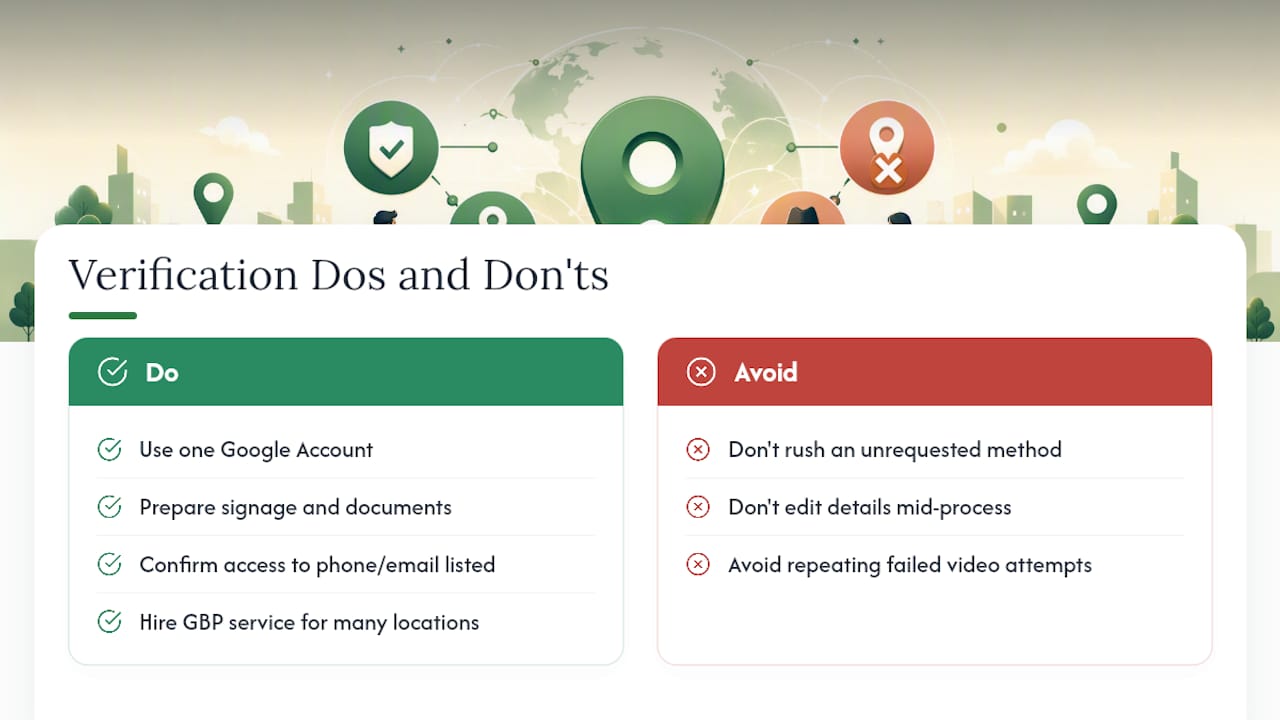
Most rejected verifications aren't Google being difficult. They're businesses trying to rush a method Google didn't actually ask for, or editing profile details mid-process and invalidating a pending code. Verification matters because an unverified profile doesn't show up reliably in Maps or local search, and that's where most of your phone calls originate.
The prep work that saves the most time: settle on one Google Account before you start, keep signage and business documents ready in case video gets assigned, and confirm you can access whatever phone or email is listed. If you're managing multiple locations, or you've already failed video verification once or twice without knowing why, that's usually the point where handing it to a GBP management service makes more sense than burning another week guessing.
— Anas
Get Your Google Business Profile Verified Without the Guesswork
Some GBP management services handle verification with direct setup, video prep, and ownership claims managed personally rather than through outsourced task queues or generic templates.
That matters most for owners juggling ten other things, multi-location businesses stuck re-verifying the same profile chain, or anyone who's already had a video or postcard attempt fail once and doesn't want to guess at reason number two. The GBP Optimization service covers the full arc: initial setup, verification support, video walkthrough prep, ownership requests when a profile got claimed by someone else, and the ongoing profile management that keeps you from cycling through "Get verified" every few months. If your local search visibility depends on this listing working correctly, reach out to Seohoneybadger and get your profile handled directly, starting with whatever verification stage you're stuck on right now.
FAQ
How Do I Verify My Google Business Profile?
Sign into the Google Account managing your listing, search for your business on Maps or at business.google.com, and tap Get verified. Google will assign you a method automatically, postcard, phone, email, video, or instant, and you complete the steps that method requires.
Why Does Google Keep Making Me Verify My Business?
The "Get verified" button reappears when your prior attempt didn't succeed, which usually means the review process flagged an issue with the code entered, the video submitted, or profile details that changed mid-process. Check Review issues in your dashboard for the specific reason before trying again.
How Much Does It Cost to Verify Your Business on Google?
Verification is free. You can add or claim a Business Profile at no charge and complete whichever method Google assigns without paying Google anything. If you'd rather have setup and verification handled for you, Seohoneybadger's GBP service pricing is available directly on request.
Why Won't Google Let Me Verify My Business?
Usually it's one of a few things: an unreachable phone line (IVR systems don't work for SMS verification), a postcard code entered after its 30 day expiration, or a video that got edited or ran under 30 seconds. Fix the specific issue Google names under Review issues and resubmit rather than repeating the same attempt.
What Happens if Someone Else Already Verified My Business?
Use the "Request ownership" option on the existing listing instead of creating a duplicate profile. Google will route you through an ownership request process that can grant you management access once approved.