
If you sell physical items without barcodes, or you don't run a live e-commerce feed, add products to your Google Business Profile now. Open your profile, click "Edit products," and list your most important products today. If your inventory is barcoded and moves fast, skip manual entry and connect a POS feed through Local Inventory instead.
TL;DR:
- Manual product listing works best for low-volume, unique items without barcodes, but scaling is slow and requires regular updates.
- Connecting a POS system via Local Inventory allows real-time stock updates and better accuracy for high-volume, barcode-based inventory.
- Regularly updating and tagging product images, descriptions, and categories maximizes conversion and keeps listings relevant.
- Automatic feeds from POS or delivery platforms can cause inaccuracies if not monitored, requiring occasional manual corrections.
- Tracking product views, clicks, and conversions with UTM parameters helps measure and improve listing performance over time.
Table of Contents
- What Are Google Business Profile Products, and Who Should Use Them?
- Manual Editor, POS Sync, or Merchant Center: Which One Fits Your Shop?
- How Do I Add, Edit, or Remove a Product on Google Business Profile?
- How Do I Make My Product Listings Actually Convert?
- Managing Automated Product Feeds Without Losing Control
- What Should You Track to Know Your Products Are Working?
- How Do You Keep Product Data Accurate Over Time?
- Why Won't My Product Show Up, and Other Common Fixes
- Can Product Posts and Promotions Bring in More Customers?
- Do Products Actually Move the Needle on Local SEO?
- What I've Learned Watching SMBs Handle Their Own Product Listings
- How Honey Badger SEO Handles Your Google Business Profile Products
- Official Resources Worth Bookmarking
- Sources
- FAQ
What Are Google Business Profile Products, and Who Should Use Them?
Google Business Profile products show up in a dedicated Products section, and often a carousel, right on your listing when someone searches your business name or a related category on Google Search or Maps. Each listing carries an image, a name, a price, a short description, and often a call-to-action button that sends shoppers straight to a page you choose.
The Product Editor is built for local shops selling goods without barcodes, or businesses with no online store and no live inventory feed. Think handmade jewelry, a bakery's seasonal cake menu, a boutique's curated racks, or a repair shop's parts and accessories.
Adding products pays off in a few concrete ways:
- More real estate in the search result, which crowds out competitor listings below yours
- Higher click rates because shoppers see exactly what you sell before they even visit your site
- More calls and foot traffic from people who already know your price point and want to buy
Manual Editor, POS Sync, or Merchant Center: Which One Fits Your Shop?
Three separate systems get products onto your profile, and picking the wrong one wastes hours or shows customers stale stock.
Product Editor (manual) works best for low-volume inventory, one-of-a-kind items, or anything without a barcode. You type in the name, category, description, price, image, and an optional link. It's slow at scale, but it gives you full control over presentation.
POS sync via the Local Inventory app (formerly Pointy) pulls stock automatically from compatible point-of-sale systems like Clover, Square, or Lightspeed. It's available to merchants in eligible countries, and once connected, it feeds Search, Maps, and the Shopping tab without you touching a keyboard. For barcode-based, high-volume inventory, this scales far better and stays more accurate than manual uploads ever could.
Merchant Center free listings extend your reach across Search, Maps, the Shopping tab, Images, and even YouTube. This is the right call when you sell online and want broader distribution beyond just your Business Profile.
Run through this checklist before you commit:
- How many SKUs do you carry, and do they change weekly or seasonally?
- Do your products have barcodes your POS already reads?
- Do you want visibility across all Google surfaces, or just your local listing?
- Do you need performance data tied back to specific products?
Pro Tip: Start with the Product Editor for your top 10 items even if you plan to automate later. It gets you visible this week while you sort out POS integration, which can take longer than expected.
How Do I Add, Edit, or Remove a Product on Google Business Profile?
Here's the exact sequence, start to finish.
- Sign in to the Google Account tied to your Business Profile, then search your business name in Google to pull up your listing.
- Click "Edit products," then select "Add product."
- Fill in the required fields: product name, category, description, price, and a photo. Add an optional call-to-action link if you want to send buyers to a specific page.
- Hit "Publish" and check that the listing appears in your Products carousel within a few minutes.
Editing works the same way in reverse: open "Edit products," pick the item you want to change, update whatever field needs it, then publish again. Removing a product is a single click, usually a trash icon or a "Remove" option next to the listing.
One catch that trips up a lot of owners: every product you upload has to comply with Google's shopping ads policy. That means no prohibited items, no misleading pricing, and no restricted categories. Violate it and Google can pull your uploads without much warning, sometimes leaving your Products section empty until you fix and resubmit.
If you're managing more than a handful of items, budget 15 to 20 minutes per product the first time through. It gets faster once you know the field order, but rushing the description or skipping the image almost always means a redo later.
How Do I Make My Product Listings Actually Convert?
A published listing isn't the finish line. It's the starting point for testing what makes shoppers click.
Images carry the most weight. Use bright, high-resolution photos on a consistent background, ideally a square or near-square aspect ratio so nothing gets cropped oddly in the carousel view. If you don't have a photographer on call, Product Studio can generate scenes or clean up backgrounds using AI, though some features like iOS background transforms are limited by region and platform.
Descriptions should be short, specific, and front-load the detail a shopper actually searches for. Skip the flowery language and lead with material, size, or use case. Pick the most precise category Google offers instead of a generic catch-all. It changes how your product gets matched to search intent.
For the call-to-action link, send high-intent buyers to a dedicated landing page and send everyone else to a contact or booking page instead. Either way, tag the link with UTM parameters so you can separate GBP-driven clicks from your regular organic traffic in Analytics.
- Rotate your top three product images every couple of weeks and compare click-through rates
- Swap one product description at a time so you know what actually moved the number
- Recheck your category assignment quarterly as Google's taxonomy updates
Pro Tip: Treat your Products section like a storefront window display. Swap out whatever isn't earning clicks every 2 to 4 weeks instead of letting a stale lineup sit there.
Managing Automated Product Feeds Without Losing Control
Once you turn on automatic in-store products through POS sync or a delivery partner, that feed takes over. Manual uploads get stored, not deleted, but the automated feed becomes what customers actually see.
To unlink an automated source, go to Product Sources in your Business Profile (or the linked Merchant Center account) and remove the connection. Expect the change to take effect within roughly 48 hours, not instantly.
- Keep automation on if your inventory is barcoded and changes daily. Manual tracking at that pace isn't realistic.
- Switch back to manual control if your POS feed starts showing incorrect stock or mismatched products. A wrong "in stock" tag on an item you sold out of last week erodes customer trust fast.
- Test one location first if you're rolling out POS sync across multiple stores, and confirm the product mapping is accurate before flipping the switch storewide.
What Should You Track to Know Your Products Are Working?
A consistent UTM pattern turns your Products section from a guess into a measurable channel. Use something like utm_source=google&utm_medium=gbp&utm_campaign=product_name on every CTA link, and keep the naming convention identical across products so your reports stay clean.
Watch four numbers: product views, clicks, call conversions, and direction requests. If you've linked a landing page, add landing-page conversions to that list.
- Check views and clicks weekly for your first month, then move to a monthly review once patterns settle
- Flag any product with clicks but zero conversions. That's usually a pricing or landing-page mismatch, not a visibility problem
- Escalate to Merchant Center reporting once you're running POS sync at scale, since it gives per-SKU performance data the Product Editor doesn't
UTM tagging is one of the most underused tactics in local SEO. Most owners skip it entirely, then wonder why they can't tell if their listing is doing anything.
How Do You Keep Product Data Accurate Over Time?
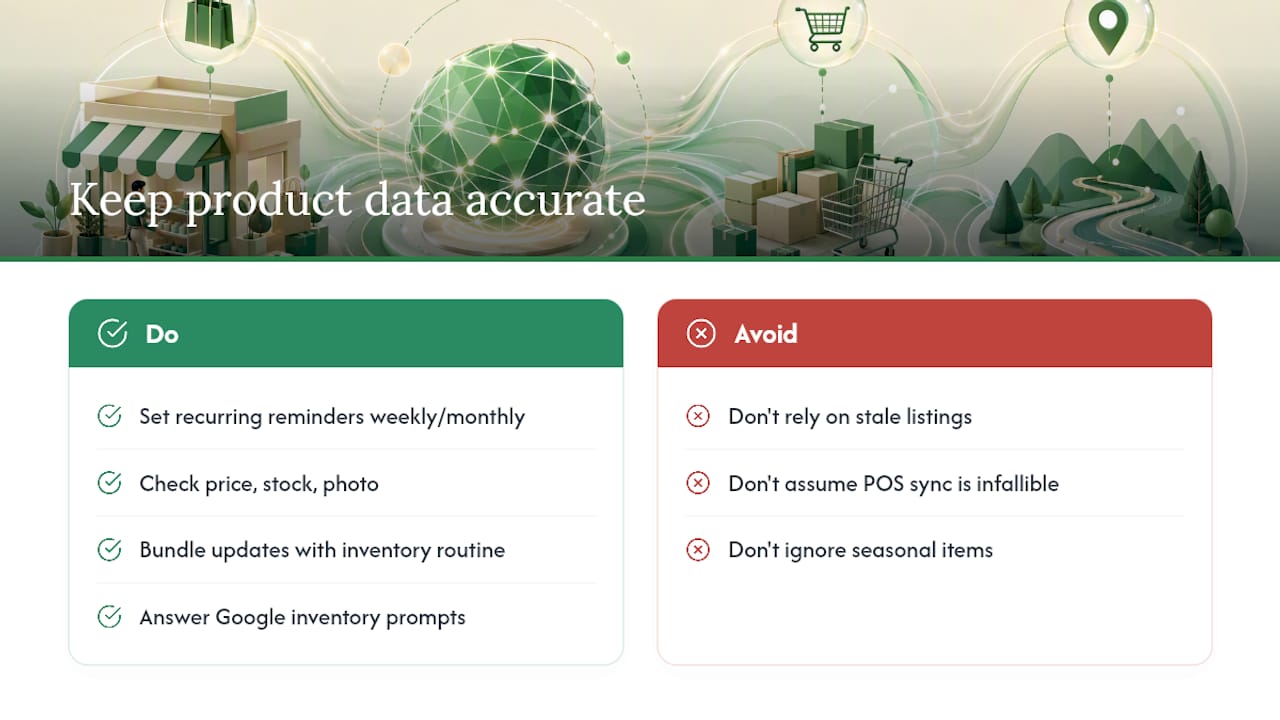
Stale product data is worse than no product data. A customer who drives to your shop for an item that's out of stock or priced wrong is a customer who leaves a one-star review, not a repeat visitor.
Set a recurring calendar reminder, weekly if you're on manual entry, monthly if you're on automated sync, to walk through your Products section and check three things: is the price still correct, is the item still in stock, and is the photo still representative of what you're selling. Seasonal businesses need tighter cycles. A garden center's spring bulb selection has no business showing up in your listing come August.
If you're running POS sync, accuracy is mostly Google's problem to solve as long as your point-of-sale system stays current. But someone on your team still needs to spot-check the live listing against your actual shelf every few weeks, because sync errors happen, especially after a POS software update or a new product line rollout.
For manual entries, build the update into whatever routine already touches your inventory. If you reorder stock every Tuesday, check your Google listing that same day. Bundling the task with something you already do beats adding a standalone chore nobody remembers.
One more habit worth building: whenever Google sends you an inventory prompt, a quick yes/no question about whether you carry a certain item, answer it. It takes ten seconds and helps Google understand your niche even without a full automated feed, which improves how your listing matches relevant searches.
Why Won't My Product Show Up, and Other Common Fixes
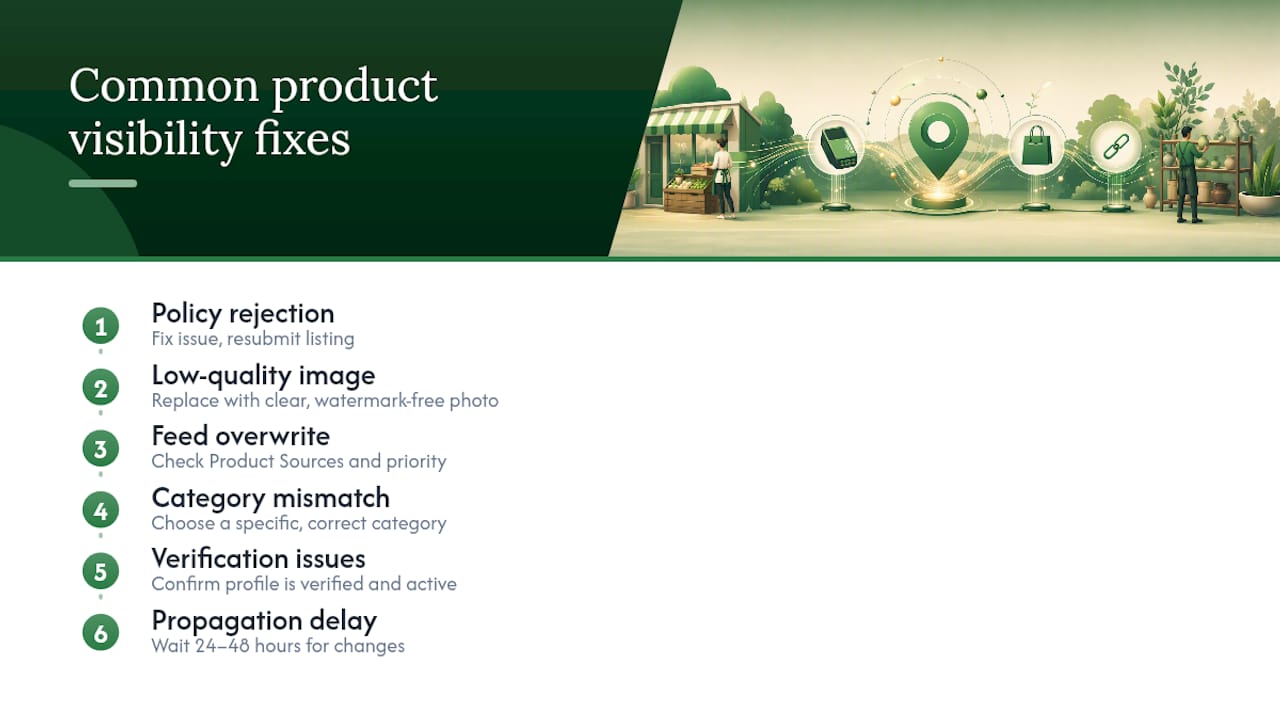
A product that vanishes or never appears usually traces back to one of a handful of causes.
It got rejected for a policy violation. Prohibited categories, misleading pricing, or restricted content trigger an automatic removal. Check your notifications in the Business Profile dashboard and resubmit after fixing whatever flagged it.
The image didn't meet quality standards. Blurry, tiny, or heavily watermarked photos sometimes get bounced. Swap in a cleaner shot and republish.
Automated sync overwrote your manual entry. If you've linked a POS or delivery partner, that feed takes priority. Check your Product Sources settings if a manual listing you expected to see has disappeared.
Category mismatch. Choosing an overly broad or wrong category can bury your product even after it's live, since Google uses category data to decide when to surface it in search results.
Verification or account issues. An unverified or suspended Business Profile won't display product updates properly, regardless of how correctly you filled out the fields. Confirm your profile status before troubleshooting anything else.
If none of that explains it, give the change 24 to 48 hours to propagate before assuming something's broken. Google's indexing isn't instant, and a lot of "missing product" panic resolves itself by the next day.
Can Product Posts and Promotions Bring in More Customers?
Products and Posts work as a pair, not a substitute for each other. A product listing is a permanent catalog entry. A Post is a timed announcement, a sale, a new arrival, an event, that shows up in your update feed and can point straight back to a specific product.
Pairing them works like this: publish the product with its standard details, then create a Post announcing a limited-time price or a new item drop, and link that Post to the product's landing page using a UTM tag distinct from your evergreen product link. That separation lets you see whether a promotion actually moved traffic, instead of guessing.
Seasonal timing matters more here than almost anywhere else in local marketing. A holiday gift guide Post two weeks before Christmas, tied to five gift-worthy products, does more work than a generic "check out our products" Post any day of the year. Same logic applies to back-to-school, summer sales, or a grand reopening after renovations.
Keep Posts short. A sentence or two, a strong photo, and a clear CTA outperform a paragraph nobody reads on a mobile search result. And don't let Posts go stale. An expired sale Post sitting on your profile for three months past its end date looks careless to anyone who notices the date.
Do Products Actually Move the Needle on Local SEO?
Products don't directly change your map ranking position the way reviews or proximity signals do, but they influence the metrics that do matter, click-through rate, time on listing, and conversion actions, which feed back into how Google evaluates your profile's relevance and quality over time.
A richer Business Profile with products, alongside strong photos, reviews, and complete attributes, tends to convert better than a bare-bones listing, and that conversion signal is part of what keeps a profile competitive. Products shouldn't be treated as a standalone SEO lever. They work best stacked with an active review response cadence, accurate business attributes, and consistent photo updates.
To maximize the effect, treat your Products section as one piece of a broader profile strategy rather than an isolated task. Pair new product uploads with a Post announcing them, respond to any customer reviews that mention specific items, and keep your primary and secondary categories aligned with what you're actually selling. Businesses juggling this alongside site optimization and citation consistency often find the broader local SEO services side of the work is where the real ranking gains show up, with products acting as the conversion layer on top.
What I've Learned Watching SMBs Handle Their Own Product Listings
Most owners either over-invest in manual product entry when they should automate, or they ignore products entirely because it feels like busywork with no clear payoff. Both mistakes come from the same root cause: nobody's tracking whether the effort produces a click, a call, or a sale.
The fix isn't complicated. Tag every product CTA with a UTM parameter before you publish it, not after. Build a five-minute weekly check into your calendar where you glance at product views and clicks. And answer every inventory prompt Google sends you, since that single habit costs nothing and quietly improves how your listing gets matched to relevant searches. None of this requires a marketing degree. It requires showing up consistently, which is the part most small business owners skip once the initial setup excitement fades.
— Anas
How Honey Badger SEO Handles Your Google Business Profile Products
Uploading a handful of products once is easy. Keeping them accurate, tagged, and tied to a strategy that actually drives calls, month after month, is where most small business owners run out of time. That's the gap Honey Badger SEO fills.
Our Google Business Profile management service covers the full setup: product uploads with proper categorization, POS or Local Inventory linking where it makes sense for your stock, UTM-tagged CTAs so you can see what's actually converting, and ongoing edits as your inventory changes. We handle it directly and bill month-to-month, so you're never locked into a long contract to see if it's working.
If you're in Arizona and want a local team that also handles your broader search visibility alongside your product listings, take a look at our Arizona SEO services or reach out for a Business Profile review to see exactly where your current setup is leaving clicks on the table.
Official Resources Worth Bookmarking
- Product Editor help: field requirements and eligibility
- In-store products setup: POS and delivery partner linking
- Local Inventory retail solutions: how third-party platforms surface local offerings
- Three ways to add GBP products: a practical comparison guide
Sources
- About product editor - Google Business Profile Help
- Showcase in-store products on Google Search & Maps - Google Business Profile Help
- Google Business Profile Products: 3 ways to add them (GBP dashboard vs In-store products vs Merchant Center)
- A Complete Guide to Adding Google Business Profile Products
FAQ
How do I change products on my Google Business Profile?
Open your profile, click "Edit products," select the item you want to update, change the field, then hit "Publish" to save the change.
What is Google's 20% rule?
This isn't a documented Google policy for Business Profile products. If you've seen it referenced, it likely refers to older, unrelated guidance on other Google platforms, not product listings.
What are the Google products for business?
The core set includes the Product Editor for manual listings, the Local Inventory app for automatic POS syncing, Merchant Center for free listings across Google surfaces, and Product Studio for AI-assisted product imagery.
Do I really need a Google Business Profile?
If customers can find you on Google Search or Maps, yes. A complete profile with products, photos, and reviews directly affects whether shoppers click, call, or choose a competitor instead, and services like Honey Badger SEO's GBP management exist specifically to keep that profile working for you.