
Google Business Profile posts are short, conversion-focused updates that let local businesses promote offers, events, and calls-to-action directly in Search and Maps. Use them for time-limited deals, upcoming events, appointment prompts, or fresh proof-of-work photos. Their job is simple: push searchers who are already looking at your profile toward a call, a booking, or a visit.
TL;DR:
- Offer posts should include a clear discount, specific terms, and a landing page that matches the promotion, to maximize conversions.
- Event posts default to a 24-hour window if no end date is set, and their visibility often features a prominent countdown or date badge.
- Using UTM parameters in CTA links helps track which post templates and timings drive actual calls or bookings effectively.
- Posts are subject to review and approval, with rejection usually caused by misleading language, watermarked images, or policy violations.
- Automated posting with the Google Business Profile API is suitable for managing multiple locations, especially when scheduling recurring offers or events at scale.
Table of Contents
- What Are Google Business Profile Posts and Why They Matter
- How to Create, Schedule, and Manage a Post Step by Step
- Character Limits, Image Specs, and Formatting Rules
- Post Templates and Best Practices That Actually Convert
- Tracking Post Views, Actions, and What Actually Matters
- Automating Posts with the Google Business Profile API
- Fixing Rejected Posts and Low-Visibility Content
- How Local Businesses Put This into Practice
- When to Handle Posting Yourself and When to Bring in Help
- Let Honey Badger SEO Run Your Posting Calendar
- Sources
- FAQ
What Are Google Business Profile Posts and Why They Matter
Every Google Business Profile post falls into one of three formats, and picking the wrong one for the job wastes the slot.
Update posts cover general news, announcements, or proof-of-work content with no expiration logic attached. Offer posts carry a coupon code, terms, and a start/end date, built specifically for promotions. Event posts require a title and a date range, and they're the only type designed to promote something happening on a specific day.
Each post type pairs with a call-to-action button, and the button you choose should match what you actually want the searcher to do next.
- Book: sends users to an appointment scheduler, ideal for med spas, salons, or dental practices
- Order online: routes to a food ordering platform or online store
- Buy: links to a specific product page for retail
- Learn more: a catch-all for driving traffic to a landing page or blog post
- Sign up: fits classes, webinars, or newsletter opt-ins
- Call now: dials your business directly from mobile, the highest-intent option for service businesses
Google's own documentation on creating and managing posts confirms these three post types and lays out the CTA options as fixed choices tied to each format, not freeform add ons.
Where posts actually show up depends on the device and the surface. On desktop, posts usually appear in a horizontal carousel on the Business Profile in Search, often labeled "Updates from this business" or similar. On mobile, especially inside Google Maps, posts can appear lower on the profile or inside a dedicated tab, and Offer posts sometimes get pulled into a separate "Offers" section that's easy to miss if you're not looking for it. Event posts, when active, often surface with a countdown or date badge that stands out visually from regular Updates. Photos and videos strengthen all three types, but action buttons are what actually turn a browsing searcher into a lead. According to SEMrush's breakdown of post types, offer posts can run for up to 12 months, while event posts default to a 24 hour window if you don't manually set start and end times, a detail that trips up a lot of first time posters.
How to Create, Schedule, and Manage a Post Step by Step
Posting isn't complicated, but skipping a field or picking the wrong post type is the most common reason updates underperform. Here's the sequence that avoids both problems.
- Log into your Business Profile through Google Search or Google Maps, either directly or through Google Business Profile Manager.
- Find the "Add update" or "Posts" option on your profile dashboard. It usually sits near the top of the management panel.
- Choose your post type: Update, Offer, or Event. This decision locks in which fields you'll fill out next, so match it to your goal before you start typing.
- Add your photo or video. Google recommends high-resolution images, and a blurry or stretched photo is one of the fastest ways to make a post look unprofessional even if the copy is solid.
- Write your text, staying inside the 1,500 character limit. Front-load the offer or headline in the first sentence since some views only show a preview.
- Fill in type-specific fields. Offers need a coupon code, terms and conditions, and start/end dates. Events need a title, start date, and end date.
- Select your call-to-action button and paste in the destination URL, ideally a landing page that matches the post's promise exactly.
- Preview the post before publishing to check how the image crops and how the text wraps.
- Publish or schedule. Most dashboards let you set a future publish date, and some allow recurring posts for weekly specials or standing appointment reminders.
Quick-fill checklist for offers: coupon code, discount amount or percentage, redemption terms, start date, end date, CTA button, landing page URL.
Quick-fill checklist for events: event name, start date and time, end date and time, description, CTA button, ticket or registration link.
Once published, your post takes on one of three statuses, a detail Google's help documentation spells out clearly: Live means it's visible to searchers, Pending means it's still under review, and Not approved means it violated content policy and needs to be reworked before it can go live. Pending status typically resolves within a day, but if a post sits pending for several days, that's usually a sign something in the image or copy triggered extra scrutiny.
Editing a live post is straightforward: open the post from your dashboard, make changes, and resave. Deleting works the same way, through a menu option on the post itself. Keep in mind that editing a post sometimes resets its review status, briefly bumping it back to Pending.
Pro Tip: Before you hit publish, run through a three-point check: does the image match your brand's actual color and style, does the CTA link land on a page that mentions the exact offer in the post, and have you added a UTM parameter to the URL so you can trace clicks back to that specific post in your analytics.
Character Limits, Image Specs, and Formatting Rules
Google enforces hard technical limits on posts, and formatting mistakes are a leading cause of rejected or oddly displayed content. Posts top out at 1,500 characters, according to Rank Math's guide to Business Profile posts, though most posts perform better well under that ceiling since only the first couple of lines show before a "read more" truncation on many surfaces.
- Text limit: 1,500 characters maximum, with the first 100 to 150 characters doing the real work
- Images: minimum recommended resolution of 720 by 720 pixels, saved as JPG or PNG
- Video: short clips generally under 30 seconds perform best and avoid autoplay issues
- Offer duration: up to 12 months maximum, per SEMrush
- Event duration: defaults to a 24 hour window if no end time is specified
- Active display window: industry guides from BrightLocal note that Update posts commonly remain visible in the carousel for around six months, while Offers and Events expire on their set dates
Every post passes through a content review before it goes live, which is why status shows as Pending rather than Live immediately after publishing. Rank Math's guide confirms this review step applies to all three post types, and it's an easy detail to overlook when you're wondering why a post hasn't appeared yet. Posts also display differently depending on device: a photo that looks sharp in the desktop carousel can appear cropped or stretched in the mobile Maps view, so testing on both before a big campaign push is worth the two extra minutes.
Post Templates and Best Practices That Actually Convert
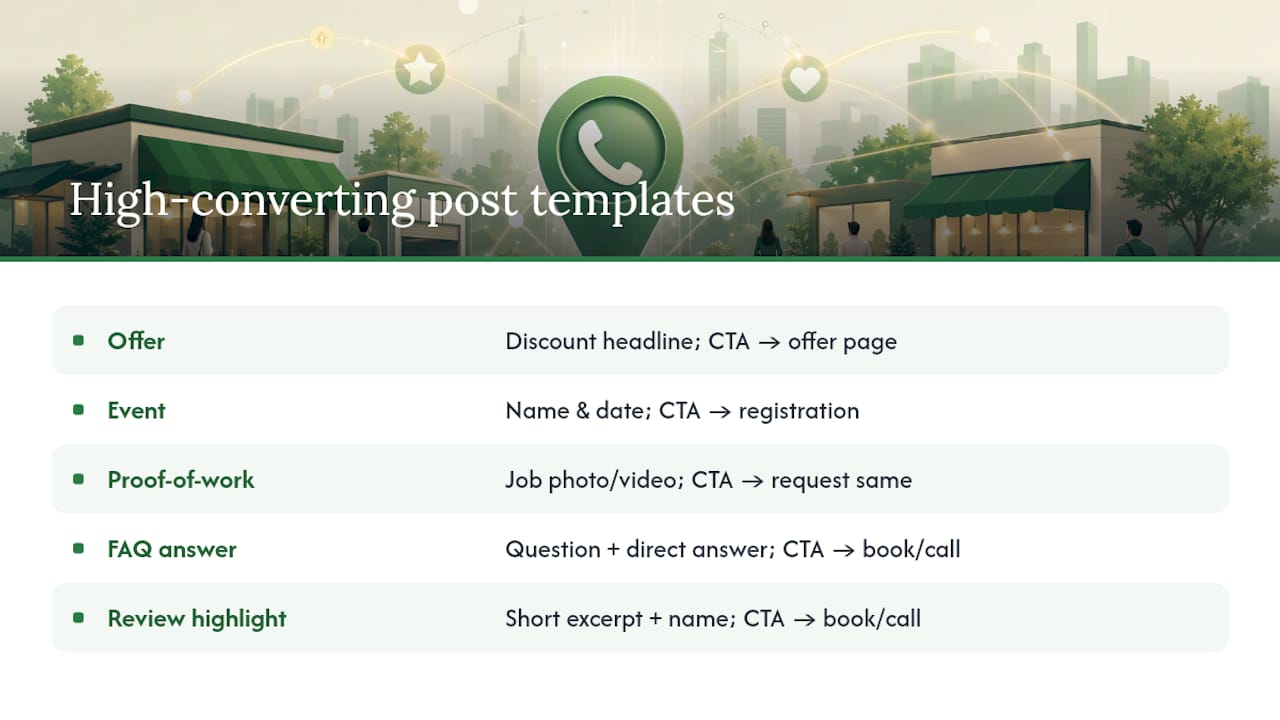
Generic filler updates get ignored. Templates built around a clear structure and a specific goal get clicks. Five formats cover almost every scenario a local business runs into.
The offer template: Headline states the discount or deal in plain numbers. One line explains what's included or excluded. A direct CTA ("Book Now" or "Call Today") links to a page describing the exact same offer, not your generic homepage.
The event template: Headline names the event and date. One line covers what attendees get out of it. CTA points to a registration page or, for informal events, a "Learn more" link to details.
The proof-of-work template: A recent job photo or short video, one line describing the work performed, and a CTA that invites viewers to request a similar service.
The FAQ-answer template: Headline poses a question customers actually ask ("Do you offer same-day appointments?"). The body answers directly. CTA drives to booking or a call.
The review-highlight template: A short excerpt from a strong customer review, credited by first name, paired with a CTA to book or call.
The copy formula behind all five is the same: headline states the hook, one or two lines deliver the benefit, then a direct CTA closes the loop to a landing page that matches the post's exact promise.
On cadence, rotate through these templates rather than posting the same format on repeat. Google's community best-practice guide recommends posting regularly but explicitly warns against filler content that adds no new information, since profiles that post constantly without variety tend to see engagement flatten out. A weekly proof-of-work post paired with a monthly offer and the occasional event post covers most local business needs without becoming noise.
For creative rotation ideas beyond Google's own platform, campaigns that stay fresh by cycling multiple hooks tend to outperform single-angle repeats. This principle, covered in detail in TikTok Ad Fatigue's guide to rotating creative hooks, applies just as well to Business Profile posting cadence as it does to paid social.
Pro Tip: Tag every CTA link with a UTM parameter that identifies the template type and publish date, something like ?utm_source=gbp&utm_medium=post&utm_campaign=offer_march2026. That's the only reliable way to know which template actually drove the call, not just the view.
Tracking Post Views, Actions, and What Actually Matters
Google rolled out post view counts inside the Business Profile dashboard, giving owners visibility into how many people saw each individual post. Search Engine Journal's coverage of the rollout reports that the reporting window covers posts published over the past 18 months and combines views from both Search and Maps into a single number.
Views tell you reach. They don't tell you whether anyone picked up the phone. For a lead-generation business, that distinction changes how you should read the dashboard: a post with thousands of views and zero calls is a worse outcome than a post with a few hundred views and five bookings.
- Track post view counts in the Performance tab to gauge reach and spot which formats get seen
- Track calls, booking clicks, and website clicks separately since these are the metrics tied to revenue
- Cross-reference UTM-tagged links in Google Analytics to see which posts actually drove traffic that converted
- Run simple A/B comparisons: same offer, different headline; same CTA, different image; same event, different posting time
A basic testing habit beats guessing. Post the same offer with two different headlines on two separate weeks, keep everything else identical, and compare the call volume. Over a few months you'll have a rough sense of what language and imagery your specific audience responds to, which is more useful than any general best-practice list.
Automating Posts with the Google Business Profile API
Manually posting works fine for a single location, but chains and multi-location brands often need something more systematic. Google's Posts API, documented in Google Developers' Posts data guide, supports creating, editing, and deleting posts programmatically, along with a defined set of action types including BOOK, ORDER, SHOP, LEARN_MORE, SIGN_UP, and CALL.
- The API requires OAuth 2.0 credentials tied to a verified Business Profile account
- Supported actions map directly to the same CTA buttons available in the dashboard, so the choice is about workflow, not features
- Recent developer updates introduced RecurrenceInfo, which lets developers schedule recurring posts programmatically rather than resubmitting the same update manually every week
- Third-party scheduling tools that connect to the API can push identical or localized posts across dozens of profiles at once, which single-location dashboard posting simply can't do at scale
For a business running one or two locations, the dashboard is faster and carries less operational risk than setting up API credentials. Automation earns its keep once you're managing enough locations that manual posting becomes a full-time job on its own. Whichever route you take, keep control of your own credentials and verify that any third-party tool isn't posting content that hasn't been reviewed by someone on your team first, since a bad post pushed across 40 locations is a bigger cleanup job than one bad post on a single profile.
Fixing Rejected Posts and Low-Visibility Content
A post landing in Not approved status almost always traces back to one of a handful of causes: promotional language that reads as misleading, phone numbers or URLs stuffed into the image itself, watermarked stock photos, or content that violates Google's policy on regulated categories like alcohol or healthcare claims.
- Check the image first. Text overlays, logos crammed into corners, or low-resolution photos are common rejection triggers.
- Reread the copy for exaggerated claims. Words like "guaranteed" or "best in the city" without backing can flag a post for review.
- Verify every link works and lands on a live, matching page, since broken URLs can also trigger a rejection or a Pending status that never resolves.
- Confirm your account verification status is current, since a lapsed verification can affect whether new posts get approved at all.
If a post gets rejected, editing the flagged element and resubmitting is usually all that's needed. Repeated policy violations across multiple posts can affect your profile's standing more broadly, so it's worth treating a rejection as a signal to review your whole content pipeline, not just that one post.
Low visibility is a different problem from rejection. A Live post that isn't getting views usually points to a CTA and landing page mismatch, a thumbnail image that doesn't stand out in the carousel, or posting at a time when your typical searchers aren't active. Testing your posting schedule against when your call volume tends to spike is a simple fix that costs nothing but a little attention.
Pro Tip: Keep a rejected-post log with the reason and the fix. After a few months you'll see a pattern, usually the same one or two issues, and you can build a pre-publish checklist that prevents that specific mistake going forward.
How Local Businesses Put This into Practice
A dental practice running a new-patient exam special is a textbook Offer post case: coupon code, expiration date, and a Book CTA linking straight to the scheduling page, not the homepage. That kind of tight alignment between offer and landing page is the difference between a post that generates a handful of calls and one that gets ignored, a principle that carries over directly into dental-specific SEO work where the whole profile, not just the posts, needs to point toward booking.
Med spas and service contractors run into a similar pattern: recurring seasonal offers (a spring HVAC tune-up, a summer skin treatment package) work best as a repeatable calendar rather than a one-off post someone remembers to write when business slows down.
Some SEO providers manage these calendars directly for client accounts, building a rotation of offer, event, and proof-of-work templates tied to each business's actual seasonal patterns rather than a generic posting schedule. CTA links often carry UTM tags mapped back to the specific template and publish date, so performance reporting can show which post type is generating calls, not just which one got the most views. That reporting discipline connects to broader local SEO management work, where GBP posting is one lever among several, alongside citation consistency, review generation, and on-page optimization.
Full client case details and outcome data live on Honey Badger's case studies page, covering how the recurring-calendar approach has played out across different service categories.
When to Handle Posting Yourself and When to Bring in Help
Posting once a week on a single profile is a task any business owner can handle without outside help. The math changes once you're juggling multiple locations, running recurring offers on top of seasonal campaigns, or trying to build a proper testing cadence while also running the actual business. That's when a managed calendar starts paying for itself, not because posting is technically hard, but because doing it consistently, with UTM tracking and landing page alignment, takes a level of ongoing attention most owners don't have spare hours for.
If you're already stretched thin on marketing, Honey Badger SEO's Google Business Profile management handles that recurring work directly, month to month, without outsourcing it to a subcontractor. The value isn't the posting itself. It's the discipline of doing it the same careful way every single week.
— Anas
Let Honey Badger SEO Run Your Posting Calendar
Most agencies hand off Google Business Profile work to a subcontractor or a junior account manager who never talks to you directly. An alternative service model involves one person building the posting calendar, tagging every CTA link, and reporting on which templates are generating calls, not just views.
Such services can cover setup and verification, recurring calendars rotating offers, events, and proof-of-work updates, UTM tagging on every link, and monthly reporting tied to the Performance tab for easier insights. Services typically run month to month with no long-term contract, and the same person who sets up a calendar may also manage it weekly going forward. If you're running a dental practice, med spa, home service business, or any local operation that lives or dies by phone calls, check out Google Business Profile management with Honey Badger SEO and get a calendar built around your actual seasonal patterns instead of a generic template.
Sources
For source-level detail beyond what's covered here, these are the primary references worth bookmarking:
- Create & manage posts on your Business Profile — Google Business Profile Help
- Create Posts on Google | Google Business Profile APIs — Google Developers
- What Are Google Business Profile Posts? — SEMrush
- Google adds post view counts to Business Profiles — Search Engine Journal
- Google Business Profile Posts: A Comprehensive Guide — Rank Math
FAQ
What should I post on my Google Business Profile?
Rotate between offer posts for time-limited deals, event posts for anything happening on a specific date, and update posts for proof-of-work photos or general news, always with a matching landing page behind the CTA.
How do I see Google Business Profile post views?
Open the Performance tab in your Business Profile dashboard, where Google reports view counts covering posts published over the past 18 months, combining views from both Search and Maps.
How do Google Business Profile posts work?
You create a post choosing Update, Offer, or Event, add an image or video and a CTA button, and Google reviews the content before it goes live, showing a status of Live, Pending, or Not approved.
What are the rules for a Google Business Profile post?
Posts must stay within 1,500 characters, follow Google's content policies against misleading claims or watermarked images, and offer posts can run for up to 12 months while event posts default to a 24 hour window without set times.